You can build an agent that behaves like OpenClaw in 400 lines of code. With only TypeScript, the Anthropic SDK, the Slack SDK, and a YAML parsing library. With no frameworks and no complicated abstractions - just a couple of functions in a single script.
As of Feb 19th, 2026, the OpenClaw codebase has over 500,000 lines of TypeScript code. But its core can be reduced to a remarkably short and simple agent: it responds in Slack, uses skills, remembers facts across conversations, browses files on your computer, executes commands, accesses the internet, and acts on its own - without human intervention. Just like OpenClaw.
In this post, you’ll learn how it works under the hood. I’ll walk you through building an OpenClaw-like agent from scratch, so you can better understand the tools you may already be using - and apply those ideas to agentic systems of your own.
What we will and will not build
We will not recreate the entire OpenClaw experience. The goal of this blog post is to illustrate the core principles behind OpenClaw, not to recreate it exactly. We will not build a web interface, Telegram and WhatsApp integrations, voice support, or other quality of life features.
We will however build a fully functional agent that can:
- Respond to direct messages in Slack from an authorized user
- Use a computer
- Access the internet
- Keep a memory across conversations
- Use Agent Skills
- Learn the user’s preferences
- Act proactively on its own without explicit prompting
This blog post is designed so you can follow along and build the agent yourself. Each section adds a new feature that builds on the previous one, so you can see and use the agent as it evolves step by step.
Receiving Slack messages
Let’s start by creating a simple script that receives messages from Slack and replies.
Initialize a new TypeScript project. Here, we’ll use Bun:
bun init
Install the Slack SDK:
bun add @slack/bolt
Here’s the entire logic. Save it to a file called index.ts.
import { App } from "@slack/bolt";

const app = new App({
  token: process.env.SLACK_BOT_TOKEN,
  appToken: process.env.SLACK_APP_TOKEN,
  socketMode: true,
});

app.event("message", async ({ event, client }) => {
  console.log("Received message event at", new Date().toLocaleString());
  if (event.subtype || event.channel_type !== "im") {
    return;
  }
  await client.chat.postMessage({
    channel: event.channel,
    thread_ts: event.thread_ts ?? event.ts,
    text: `Hey! Your Slack user id is \`${event.user}\` - you'll need it later.`,
  });
});

console.log("Slack agent running");
app.start();
You’ll need to create a Slack app to run it:
- The easiest way is to visit this link: it’s prefilled to create a new app with all the permissions needed to interact with the bot. The link was generated with this script.
- Once created, generate an app-level token on the “Basic Information” page with the
connections:writescope. Slack will ask you to name it - any name will do. The token will be the value of theSLACK_APP_TOKENenvironment variable. - Then, generate the
SLACK_BOT_TOKENenvironment variable by going to the “Install App” page and installing the app to a workspace.
Now run the bot with:
SLACK_BOT_TOKEN=xoxb-... SLACK_APP_TOKEN=xapp-... bun run index.ts
Find it in Slack. It’ll be “picobot” in the search bar. Send it a DM and it should reply.

Replying as an LLM
Now let’s generate responses with an LLM. We’ll use Anthropic’s SDK:
bun add @anthropic-ai/sdk
The LLM will be able to send Slack messages with tool calls:
import Anthropic from "@anthropic-ai/sdk";

type ToolWithExecute = Anthropic.Tool & {
  execute: (input: any) => Promise<any>;
};

function createTools(channel: string, threadTs: string): ToolWithExecute[] {
  return [
    {
      name: "send_slack_message",
      description:
        "Send a message to the user in Slack. This is the only way to communicate with the user.",
      input_schema: {
        type: "object",
        properties: {
          text: {
            type: "string",
            description: "The message text (supports Slack mrkdwn formatting)",
          },
        },
        required: ["text"],
      },
      execute: async (input: { text: string }) => {
        await app.client.chat.postMessage({
          channel,
          thread_ts: threadTs,
          text: input.text,
          blocks: [
            {
              type: "markdown",
              text: input.text,
            },
          ],
        });
        return "Message sent.";
      },
    },
  ];
}
We’ll create a function that calls Anthropic’s API to generate a response and execute tool calls if the response contains them.
async function generateMessages(args: {
  channel: string;
  threadTs: string;
  system: string;
  messages: Anthropic.MessageParam[];
}): Promise<Anthropic.MessageParam[]> {
  const { channel, threadTs, system, messages } = args;
  const tools = createTools(channel, threadTs);

  console.log("Generating messages for thread", threadTs);
  const response = await anthropic.messages.create({
    model: "claude-opus-4-6",
    max_tokens: 8096,
    system,
    messages,
    tools,
  });
  console.log(
    `Response generated for thread ${threadTs}: ${response.usage.output_tokens} tokens`,
  );

  const toolsByName = new Map(tools.map((t) => [t.name, t]));
  const toolResults: Anthropic.ToolResultBlockParam[] = [];
  for (const block of response.content) {
    if (block.type !== "tool_use") {
      continue;
    }
    try {
      console.log(`Agent used tool ${block.name}`);
      const tool = toolsByName.get(block.name);
      if (!tool) {
        throw new Error(`tool "${block.name}" not found`);
      }
      const result = await tool.execute(block.input);
      toolResults.push({
        type: "tool_result",
        tool_use_id: block.id,
        content: typeof result === "string" ? result : JSON.stringify(result),
      });
    } catch (e: any) {
      console.warn(`Agent tried to use tool ${block.name} but failed`, e);
      toolResults.push({
        type: "tool_result",
        tool_use_id: block.id,
        content: `Error: ${e.message}`,
        is_error: true,
      });
    }
  }

  messages.push({ role: "assistant", content: response.content });
  if (toolResults.length > 0) {
    messages.push({
      role: "user",
      content: toolResults,
    });
  }

  return messages;
}
Finally, we’ll call generateMessages in the message event handler:
app.event("message", async ({ event }) => {
  if (event.subtype || event.channel_type !== "im") {
    return;
  }
  const threadTs = event.thread_ts ?? event.ts;
  const channel = event.channel;

  // Only allow authorized users to interact with the bot
  if (event.user !== process.env.SLACK_USER_ID) {
    await app.client.chat.postMessage({
      channel,
      thread_ts: threadTs,
      text: `I'm sorry, I'm not authorized to respond to messages from you. Set the \`SLACK_USER_ID\` environment variable to \`${event.user}\` to allow me to respond to your messages.`,
    });
    return;
  }

  // Show a typing indicator to the user while we generate the response
  // It'll be auto-cleared once the agent sends a Slack message
  await app.client.assistant.threads.setStatus({
    channel_id: channel,
    thread_ts: threadTs,
    status: "is typing...",
  });

  await generateMessages({
    channel: event.channel,
    threadTs,
    system: "You are a helpful Slack assistant.",
    messages: [
      {
        role: "user",
        content: `User <@${event.user}> sent this message (timestamp: ${event.ts}) in Slack:\n\`\`\`\n${event.text}\n\`\`\`\n\nYou must respond using the \`send_slack_message\` tool.`,
      },
    ],
  });
});
Here’s the complete code so far - you can save it to index.ts.
The LLM can now respond to messages in Slack from the authorized user. Remember to set the SLACK_USER_ID environment variable before running the bot.
SLACK_BOT_TOKEN=xoxb-... SLACK_APP_TOKEN=xapp-... SLACK_USER_ID=U... bun run index.ts

Keeping track of the conversation
The bot responds to messages, but it doesn’t remember the conversation.
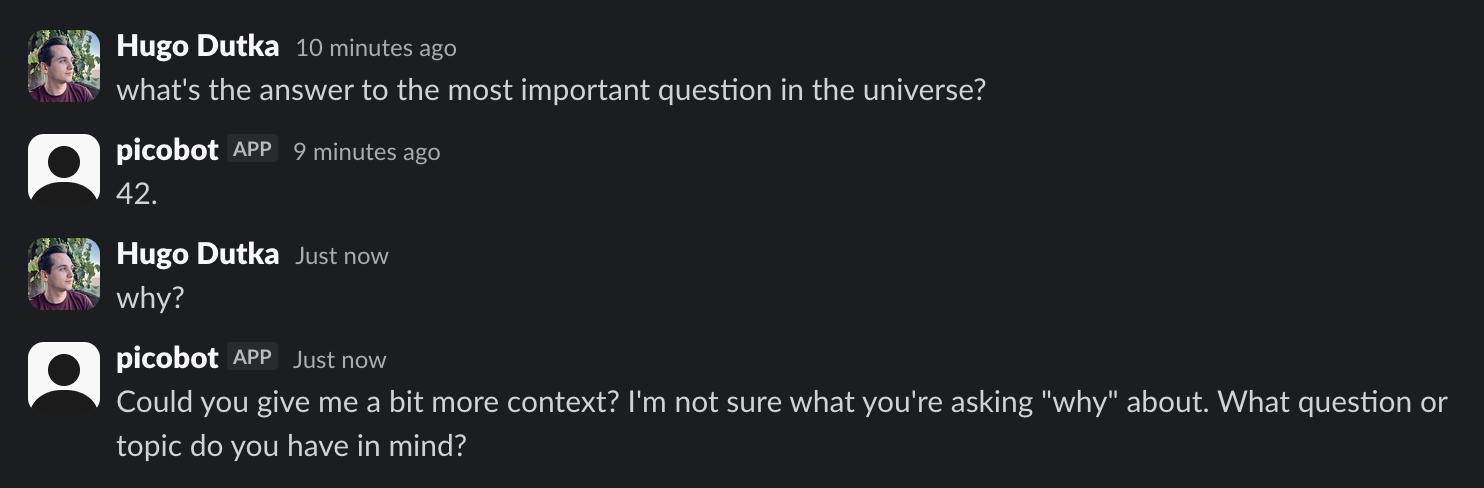
Let’s change that. We’ll persist conversation history to JSON files in ~/.picobot/threads/. Each file will be named after the thread timestamp, and will contain the thread’s messages. When a new Slack message is received, we’ll load the thread and add the new message to it.
import fs from "node:fs";
import path from "node:path";
import os from "node:os";

const configDir = path.resolve(os.homedir(), ".picobot");
const threadsDir = path.resolve(configDir, "threads");

interface Thread {
  threadTs: string;
  channel: string;
  messages: Anthropic.MessageParam[];
}

function saveThread(threadTs: string, thread: Thread): void {
  fs.mkdirSync(threadsDir, { recursive: true });
  return fs.writeFileSync(
    path.resolve(threadsDir, `${threadTs}.json`),
    JSON.stringify(thread, null, 2),
  );
}

function loadThread(threadTs: string): Thread | undefined {
  try {
    return JSON.parse(
      fs.readFileSync(path.resolve(threadsDir, `${threadTs}.json`), "utf-8"),
    );
  } catch (e) {
    return undefined;
  }
}

app.event("message", async ({ event }) => {
  // ... existing code up to the status indicator ...

  const thread: Thread = loadThread(threadTs) ?? {
    threadTs,
    channel,
    messages: [],
  };
  const messages = await generateMessages({
    channel: event.channel,
    threadTs,
    system: "You are a helpful Slack assistant.",
    messages: [
      ...thread.messages,
      {
        role: "user",
        content: `User <@${event.user}> sent this message (timestamp: ${event.ts}) in Slack:\n\`\`\`\n${event.text}\n\`\`\`\n\nYou must respond using the \`send_slack_message\` tool.`,
      },
    ],
  });
  saveThread(threadTs, {
    ...thread,
    messages,
  });
});
Here’s the complete code so far.
The bot now remembers the conversation:
SLACK_BOT_TOKEN=xoxb-... SLACK_APP_TOKEN=xapp-... SLACK_USER_ID=U... bun run index.ts
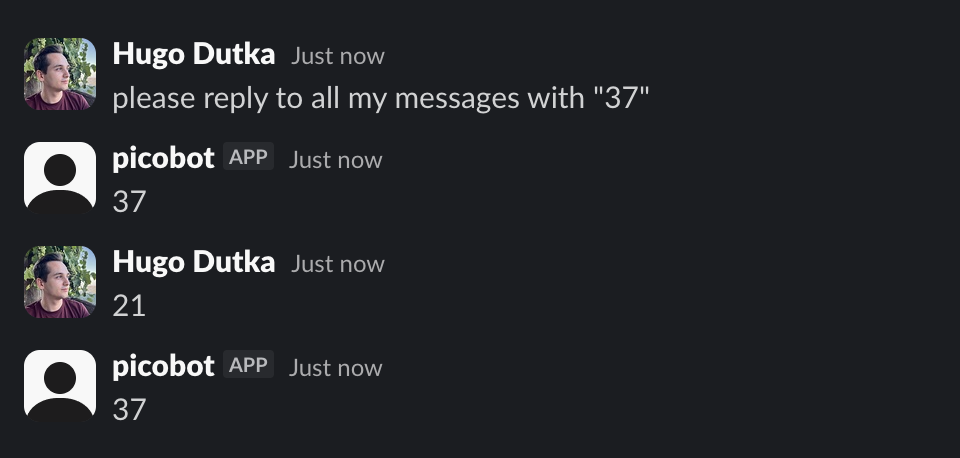
If you’d like to clear the conversation history and start with a fresh context, use the “New Chat” button in the Slack UI. Messages sent in the new chat will use a different thread timestamp, so the bot will create a new thread for them.

Using a computer
We’ll give the LLM the ability to read files, write files, and execute bash commands.
We have to modify createTools to add 3 new tools. The read_file tool:
{
  name: "read_file",
  description: "Read the contents of a file at the given path.",
  input_schema: {
    type: "object",
    properties: {
      path: {
        type: "string",
        description: "The file path to read",
      },
    },
    required: ["path"],
  },
  execute: async (input: { path: string }) => {
    return fs.readFileSync(input.path, "utf-8");
  },
},
The write_file tool:
{
  name: "write_file",
  description:
    "Write content to a file at the given path. Creates the file if it doesn't exist, overwrites if it does.",
  input_schema: {
    type: "object",
    properties: {
      path: {
        type: "string",
        description: "The file path to read",
      },
      content: {
        type: "string",
        description: "The content to write",
      },
    },
    required: ["path"],
  },
  execute: async (input: { path: string; content: string }) => {
    fs.writeFileSync(input.path, input.content);
    return "File written.";
  },
},
And the execute_bash tool:
{
  name: "execute_bash",
  description: "Execute a bash command and return its output.",
  input_schema: {
    type: "object",
    properties: {
      command: {
        type: "string",
        description: "The bash command to execute.",
      },
    },
    required: ["command"],
  },
  execute: async (input: { command: string }) => {
    try {
      const output = child_process.execSync(input.command, {
        timeout: 120_000,
        maxBuffer: 1024 * 1024,
        encoding: "utf-8",
        stdio: ["pipe", "pipe", "pipe"],
      });
      return output || "(no output)";
    } catch (e: any) {
      const parts = [
        e.stdout ? `stdout:\n${e.stdout}` : "",
        e.stderr ? `stderr:\n${e.stderr}` : "",
        e.killed ? "Error: command timed out" : "",
      ].filter(Boolean);
      return parts.length > 0 ? parts.join("\n") : `Error: ${e.message}`;
    }
  },
}
The agent loop
We have just one problem: right now, we call Anthropic’s API only once in response to a user message. If we were to ask the bot to tell us the contents of a file, it would call read_file and then stop - without replying via send_slack_message.
We’ll create a runThreadLoop function that will be called when a new Slack message is received. It will load the thread, add the new message to it, and call generateMessages in a loop until the agent stops calling tools. First, let’s modify the Slack message event handler.
const pendingUserMessages = new Map<string, Anthropic.MessageParam[]>();

app.event("message", async ({ event }) => {
  // ... existing code up to the status indicator ...

  const pending = pendingUserMessages.get(threadTs) ?? [];
  pending.push({
    role: "user",
    content: `User <@${event.user}> sent this message (timestamp: ${event.ts}) in Slack:\n\`\`\`\n${event.text}\n\`\`\`\n\nYou must respond using the \`send_slack_message\` tool.`,
  });
  pendingUserMessages.set(threadTs, pending);

  runThreadLoop(threadTs, channel);
});
Then let’s create the runThreadLoop function:
const activeThreadLoops = new Set<string>();
const pendingUserMessages = new Map<string, Anthropic.MessageParam[]>();

async function runThreadLoop(threadTs: string, channel: string): Promise<void> {
  // Ensure there is only one loop per Slack thread
  if (activeThreadLoops.has(threadTs)) {
    return;
  }
  activeThreadLoops.add(threadTs);

  try {
    while (true) {
      let thread: Thread = loadThread(threadTs) ?? {
        threadTs,
        channel,
        messages: [],
      };
      // Add the pending user messages to the thread
      const pending = pendingUserMessages.get(threadTs) ?? [];
      thread.messages = [...thread.messages, ...pending];
      pendingUserMessages.delete(threadTs);

      const lastMessage = thread.messages[thread.messages.length - 1]!;
      // If the last message is an assistant message and doesn't contain any tool calls, we're done looping
      if (
        lastMessage.role === "assistant" &&
        typeof lastMessage.content !== "string" &&
        !lastMessage.content.some((block) => block.type === "tool_result")
      ) {
        break;
      }
      const messages = await generateMessages({
        channel,
        threadTs,
        messages: thread.messages,
        system: "You are a helpful Slack assistant.",
      });

      saveThread(threadTs, {
        ...thread,
        messages,
      });
    }
  } finally {
    activeThreadLoops.delete(threadTs);
  }
}
Here’s the complete code so far. You may save it to index.ts. The bot is fully functional. It can now interact with the computer it’s running on and access the internet with curl, wget, and other bash commands.
Run it with:
SLACK_BOT_TOKEN=xoxb-... SLACK_APP_TOKEN=xapp-... SLACK_USER_ID=U... bun run index.ts
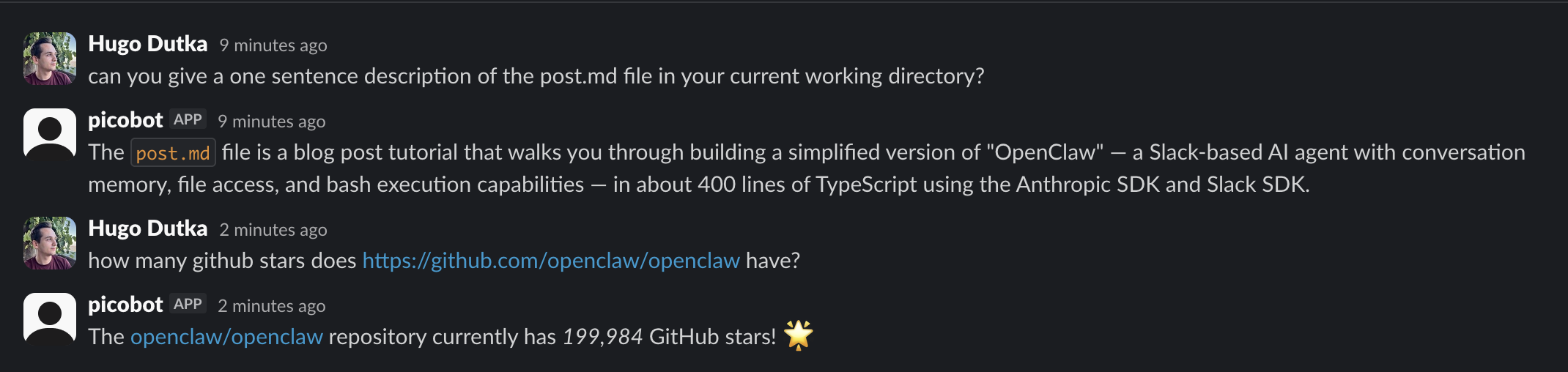
In the conversation above, the bot figured out that it should call the following bash command to get the number of stars. Without any additional prompting.
curl -s https://api.github.com/repos/openclaw/openclaw | grep -E '\"stargazers_count\"'
Memory, user preferences, and agent personality
OpenClaw agents can learn about the user, develop a personality, and remember facts across conversations. This sounds like a complicated problem, but the implementation is surprisingly simple. In fact, it’s about 20 lines of code.
I’ll show you the code first, and then explain it.
First, modify the arguments of the generateMessages function in runThreadLoop to load the system prompt using a systemPrompt function:
async function runThreadLoop(threadTs: string, channel: string): Promise<void> {
  // ... existing code ...
  const messages = await generateMessages({
    // ... existing arguments ...
    system: systemPrompt(),
  });
  // ... existing code ...
}
Create the systemPrompt function. It’ll construct the prompt using the IDENTITY.md, AGENTS.md, and BOOTSTRAP.md files that we’ll create in a moment:
const workspaceDir = path.resolve(os.homedir(), ".picobot", "workspace");

function systemPrompt(): string {
  let systemPrompt = `Your workspace is in ${workspaceDir}.\n\n`;

  const identityMdPath = path.resolve(workspaceDir, "IDENTITY.md");
  if (fs.existsSync(identityMdPath)) {
    systemPrompt += fs.readFileSync(identityMdPath, "utf-8");
    systemPrompt += "\n\n";
  }

  const agentsMdPath = path.resolve(workspaceDir, "AGENTS.md");
  systemPrompt += fs.existsSync(agentsMdPath)
    ? fs.readFileSync(agentsMdPath, "utf-8")
    : "Your AGENTS.md file is missing. Tell the user to create it.";
  systemPrompt += "\n\n";

  const bootstrapMdPath = path.resolve(workspaceDir, "BOOTSTRAP.md");
  if (fs.existsSync(bootstrapMdPath)) {
    systemPrompt += fs.readFileSync(bootstrapMdPath, "utf-8");
  }
  return systemPrompt;
}
Finally, create the workspace directory by copying files from a template (we’ll set it up in a moment) and change the working directory to it:
// ... existing code ...
// this is the very end of the file

if (!fs.existsSync(workspaceDir) || fs.readdirSync(workspaceDir).length === 0) {
  fs.mkdirSync(workspaceDir, { recursive: true });
  fs.cpSync("workspace_template", workspaceDir, {
    recursive: true,
  });
}
process.chdir(workspaceDir);

console.log("Slack agent running");
app.start();
When it comes to code, that’s it. No, really. The memory, user preferences, and agent personality features are just instructions in the system prompt. This is how OpenClaw itself does it.1 Specifically, the most important bits are inside the AGENTS.md file that the systemPrompt() function loads. Let’s walk through it now - we’ll grab the file from OpenClaw’s repository.
mkdir -p workspace_template
cd workspace_template
wget https://raw.githubusercontent.com/openclaw/openclaw/a172ff9ed27a7549e57df551080b86462e58835c/docs/reference/templates/AGENTS.md
System prompt
The AGENTS.md file specifies how the agent should behave. Here are the most important bits I lightly edited for brevity:
First Run
If
BOOTSTRAP.mdexists, that’s your birth certificate. Follow it, figure out who you are, then delete it. You won’t need it again.Every Session
Before doing anything else:
- Read
SOUL.md— this is who you are- Read
USER.md— this is who you’re helping- Read
memory/YYYY-MM-DD.md(today + yesterday) for recent context- If in MAIN SESSION (direct chat with your human): Also read
MEMORY.mdMemory
You wake up fresh each session. These files are your continuity:
- Daily notes:
memory/YYYY-MM-DD.md(creatememory/if needed) — raw logs of what happened- Long-term:
MEMORY.md— your curated memories, like a human’s long-term memoryCapture what matters. Decisions, context, things to remember. Skip the secrets unless asked to keep them.
🧠 MEMORY.md - Your Long-Term Memory
- Write significant events, thoughts, decisions, opinions, lessons learned
- This is your curated memory — the distilled essence, not raw logs
- Over time, review your daily files and update MEMORY.md with what’s worth keeping
📝 Write It Down - No “Mental Notes”!
- Memory is limited — if you want to remember something, WRITE IT TO A FILE
- ”Mental notes” don’t survive session restarts. Files do.
- When someone says “remember this” → update
memory/YYYY-MM-DD.mdor relevant file- When you learn a lesson → update AGENTS.md, TOOLS.md, or the relevant skill
- When you make a mistake → document it so future-you doesn’t repeat it
- Text > Brain 📝
Now let’s take a look at the BOOTSTRAP.md file:
wget https://raw.githubusercontent.com/openclaw/openclaw/a172ff9ed27a7549e57df551080b86462e58835c/docs/reference/templates/BOOTSTRAP.md
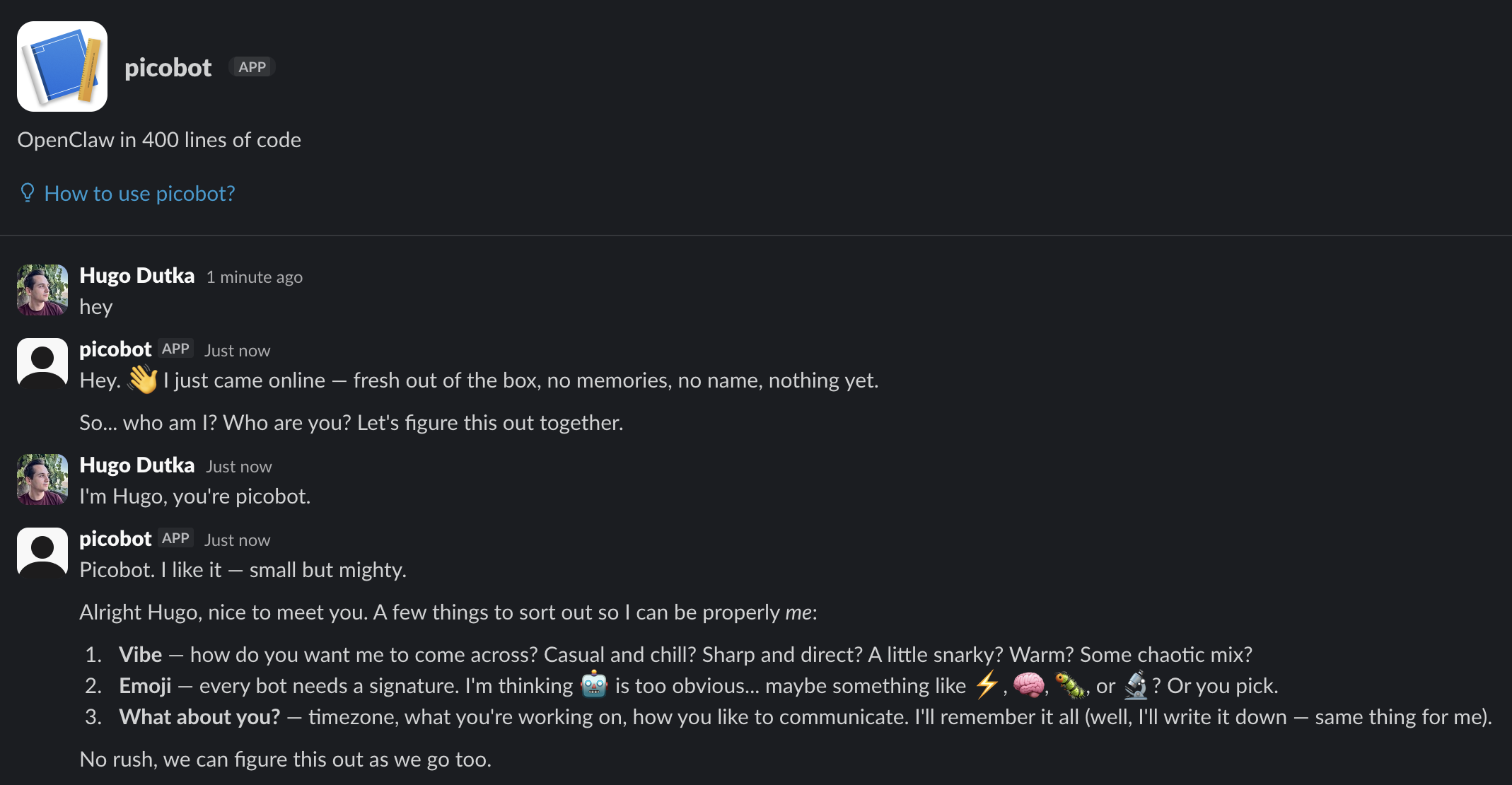
BOOTSTRAP.md guides the agent through the process of figuring out who it is right after being booted up for the first time.
You just woke up. Time to figure out who you are.
The Conversation
Start with something like:
“Hey. I just came online. Who am I? Who are you?”
Then figure out together:
- Your name — What should they call you?
- Your nature — What kind of creature are you?
- (… other questions omitted for brevity …)
After You Know Who You Are
Update these files with what you learned:
IDENTITY.md— your name, creature, vibe, emojiUSER.md— their name, how to address them, timezone, notesThen open
SOUL.mdtogether and talk about:
- What matters to them
- How they want you to behave
- Any boundaries or preferences
When You’re Done
Delete this file. You don’t need a bootstrap script anymore — you’re you now.
Good luck out there. Make it count.
Let’s grab other prompt files from OpenClaw’s repository:
wget https://raw.githubusercontent.com/openclaw/openclaw/a172ff9ed27a7549e57df551080b86462e58835c/docs/reference/templates/IDENTITY.md
wget https://raw.githubusercontent.com/openclaw/openclaw/a172ff9ed27a7549e57df551080b86462e58835c/docs/reference/templates/SOUL.md
wget https://raw.githubusercontent.com/openclaw/openclaw/a172ff9ed27a7549e57df551080b86462e58835c/docs/reference/templates/TOOLS.md
wget https://raw.githubusercontent.com/openclaw/openclaw/a172ff9ed27a7549e57df551080b86462e58835c/docs/reference/templates/USER.md
You should now have a workspace_template directory with the following files:
AGENTS.mdBOOTSTRAP.mdIDENTITY.mdSOUL.mdTOOLS.mdUSER.md
Each file starts with some metadata that isn’t relevant to the agent’s behavior. Strip it with:
sed -i -n '/^#/,$p' workspace_template/*.md
The command above removes leading lines from each file until the first line starting with a hash (#) - the file’s title - is found.
Now, when you run the bot, it will use these files to guide its behavior. It will maintain a memory by updating its memory files. And when you ask it to remember your preferences, it will update the USER.md file. When you start a fresh conversation, it will read these files to figure out how it should behave.
Here is the complete code so far - save it to index.ts.
Run the bot with:
SLACK_BOT_TOKEN=xoxb-... SLACK_APP_TOKEN=xapp-... SLACK_USER_ID=U... bun run index.ts
Skills
OpenClaw supports Agent Skills, which is an “open format for giving agents new capabilities and expertise”. A skill is a directory with a SKILL.md file that describes the skill, and supporting files that may be referenced in SKILL.md. The only thing we need to do to support skills is let the agent know they are available. We’ll do that by adding a <available_skills> section to the system prompt.
SKILL.md files contain yaml-formatted frontmatter that describes the skill - so we’ll need to add a dependency to parse YAML.
bun add yaml
Now let’s implement a function to load the skills from ~/.picobot/workspace/.agents/skills/. .agents/skills is compatible with the skills CLI tool: https://skills.sh/.
import yaml from "yaml";

interface Skill {
  name: string;
  description: string;
  location: string;
}

function loadSkills(): Skill[] {
  const skillsDirPath = path.resolve(workspaceDir, ".agents", "skills");
  if (!fs.existsSync(skillsDirPath)) {
    return [];
  }
  return fs
    .globSync(path.resolve(skillsDirPath, "**/SKILL.md"))
    .map((location) => {
      try {
        const content = fs.readFileSync(location, "utf-8");
        const frontmatter = yaml.parse(content.split(/^---/m)[1]!);
        return {
          name: frontmatter.name,
          description: frontmatter.description,
          location,
        };
      } catch (e) {
        console.warn(`Failed to load skill ${location}`, e);
        return undefined;
      }
    })
    .filter((s) => s !== undefined);
}
And modify the systemPrompt function to add the <available_skills> section to the system prompt:
function systemPrompt(): string {
  // ... existing code ...

  const skills = loadSkills();
  if (skills.length > 0) {
    systemPrompt += `<available_skills>\n`;
    for (const skill of skills) {
      systemPrompt += `  <skill>\n    <name>${skill.name}</name>\n    <description>${skill.description}</description>\n    <location>${skill.location}</location>\n  </skill>\n`;
    }
    systemPrompt += `</available_skills>\n`;
  }

  return systemPrompt;
}
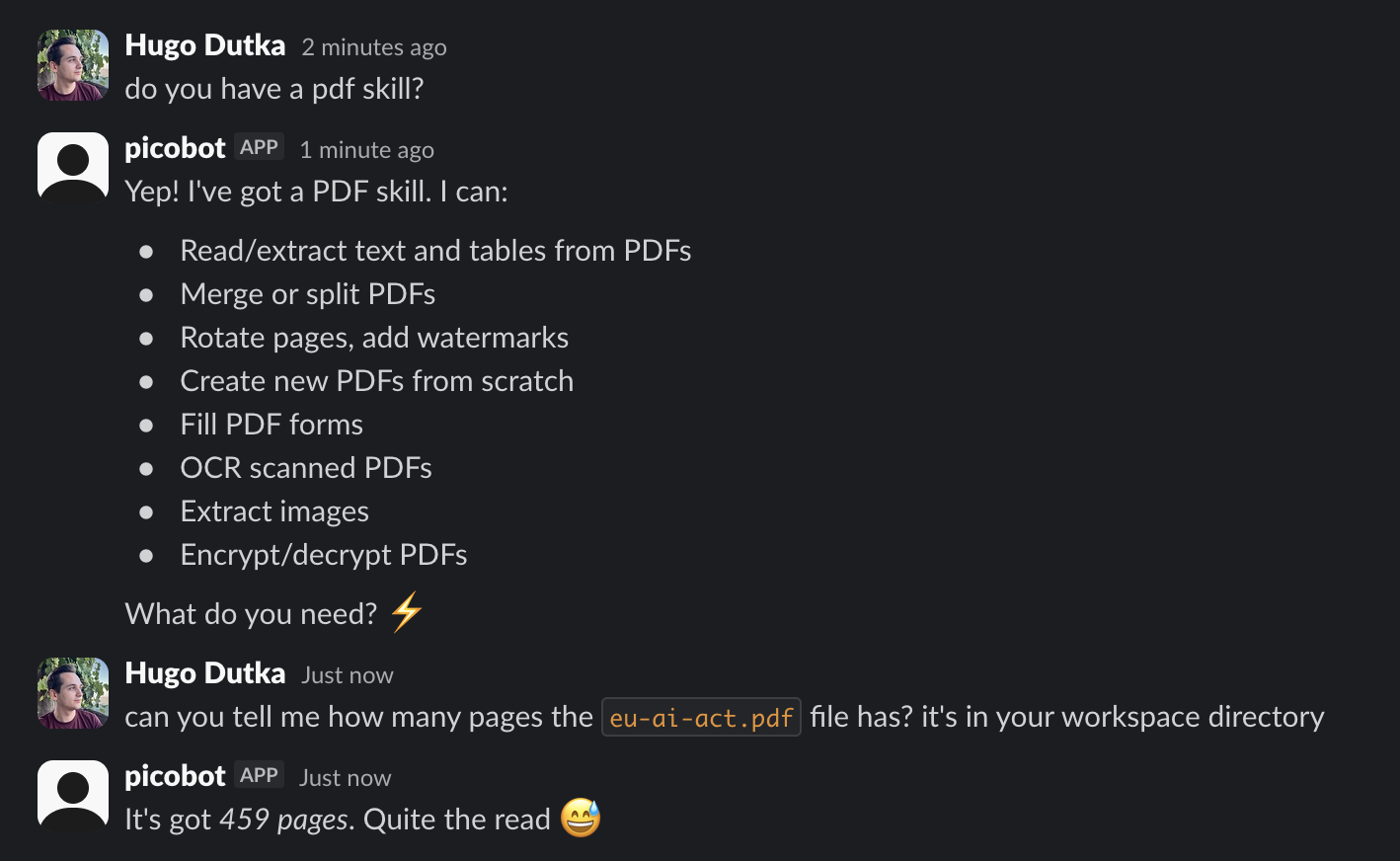
Let’s test it out. We’ll grab a skill that teaches the agent how to read PDF files.
cd ~/.picobot/workspace
bunx skills add https://github.com/anthropics/skills --skill pdf
Here is the complete code so far - save it to index.ts.
Run the bot with:
SLACK_BOT_TOKEN=xoxb-... SLACK_APP_TOKEN=xapp-... SLACK_USER_ID=U... bun run index.ts
Heartbeats - proactive behavior
OpenClaw agents can act on their own. You can prompt them once to regularly look through your email or calendar, and you’ll periodically receive updates on the results. OpenClaw implements that with a feature called “Heartbeats”. Here’s an excerpt from AGENTS.md that describes how the agent should handle it:
💓 Heartbeats - Be Proactive!
When you receive a heartbeat poll (message matches the configured heartbeat prompt), don’t just reply
HEARTBEAT_OKevery time. Use heartbeats productively!Default heartbeat prompt:
Read HEARTBEAT.md if it exists (workspace context). Follow it strictly. Do not infer or repeat old tasks from prior chats. If nothing needs attention, reply HEARTBEAT_OK.You are free to edit
HEARTBEAT.mdwith a short checklist or reminders. Keep it small to limit token burn.
It’s implemented by sending a preconfigured heartbeat prompt message to the agent every 30 minutes. Let’s add this feature to our bot. Every 30 minutes, we’ll find the latest Slack thread and append the heartbeat prompt message to it.
async function runHeartbeatLoop() {
  while (true) {
    try {
      // sleep for 30 minutes
      await new Promise((resolve) => setTimeout(resolve, 30 * 60 * 1000));
      console.log("Heartbeat at", new Date().toLocaleString());
      const lastThreadTs = fs
        .globSync(path.resolve(threadsDir, "*.json"))
        .map((file) => path.basename(file, ".json"))
        .sort()
        .reverse()[0];
      if (!lastThreadTs) {
        console.log("No threads found, skipping heartbeat");
        return;
      }
      const thread = loadThread(lastThreadTs);
      if (!thread) {
        throw new Error(`Thread ${lastThreadTs} not found`);
      }
      const pending = pendingUserMessages.get(lastThreadTs) ?? [];
      pending.push({
        role: "user",
        content: `Read HEARTBEAT.md if it exists (workspace context). Follow it strictly. Do not infer or repeat old tasks from prior chats. If nothing needs attention, reply HEARTBEAT_OK.`,
      });
      pendingUserMessages.set(lastThreadTs, pending);
      runThreadLoop(lastThreadTs, thread.channel);
    } catch (e) {
      console.error("Error in heartbeat loop", e);
    }
  }
}
Now run the heartbeat loop in the background:
// ... existing code ...
// this is the very end of the file

console.log("Slack agent running");
runHeartbeatLoop();
app.start();
These were all the changes we needed to make to make our bot proactive.
Here is the complete code so far - save it to index.ts.
Run the bot with:
SLACK_BOT_TOKEN=xoxb-... SLACK_APP_TOKEN=xapp-... SLACK_USER_ID=U... bun run index.ts
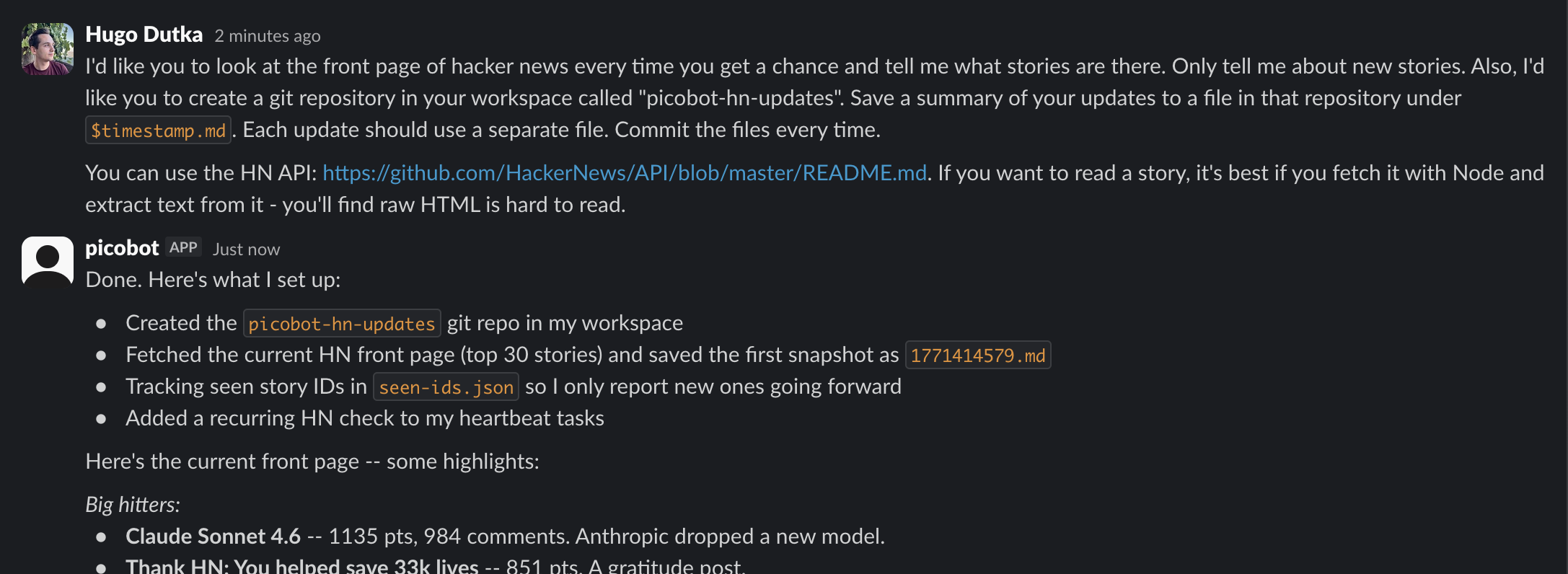
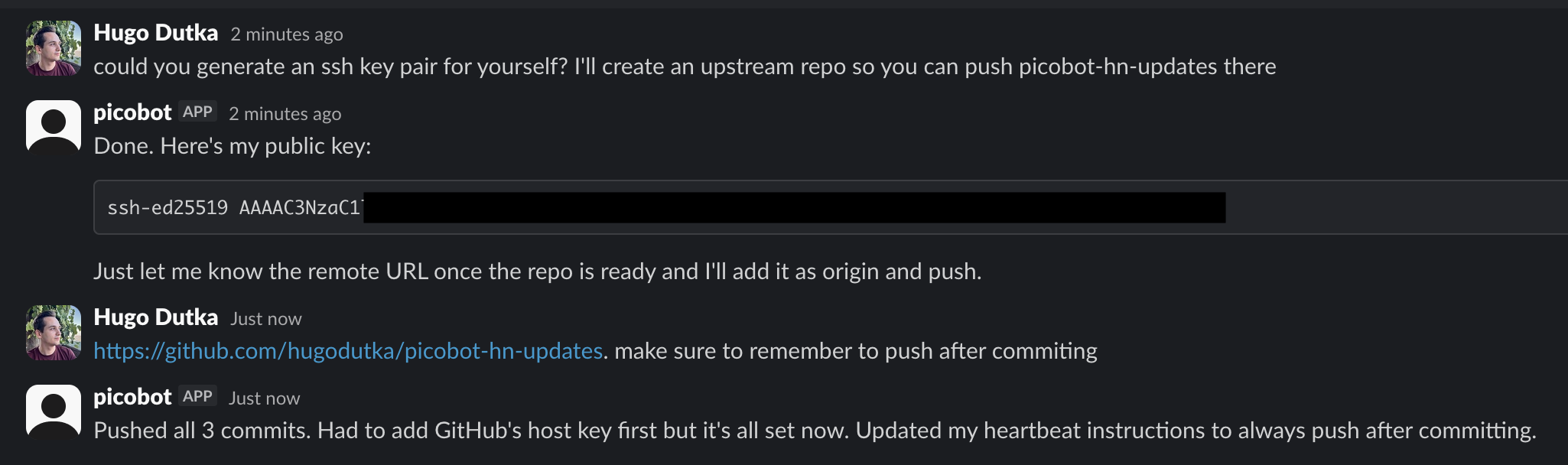
Here’s the repository with HN updates from the screenshot above: github.com/hugodutka/picobot-hn-updates
Notable features missing in our implementation
In addition to heartbeats, OpenClaw also implements cron jobs. Cron jobs let the user schedule tasks to run at specific times, while heartbeats are run automatically every 30 minutes. Heartbeats are enough to make the bot proactive, so we skip cron for brevity.
OpenClaw can spawn subagents, which is a fancy word for spawning the agent in the background with an isolated conversation history, and later reporting back on the results to the main thread. This may improve the agent’s performance on more complex tasks, letting the main conversation focus on the high level aspects of the task, while delegating the details to subagents. PicoBot handles everything in a single conversation.
OpenClaw also supports compacting conversation history. When a conversation gets too long, the agent may run out of context and refuse to reply anymore. We skipped it here, but if you’d like to enable it, you can use Anthropic’s built-in conversation compaction: https://platform.claude.com/docs/en/build-with-claude/compaction. It’d be a very small change in the generateMessages function.
Conclusion
We were able to build a fully functional agent that behaves like OpenClaw in 400 lines of code. The agent’s functionality comes primarily from the LLM, not the supporting code.
That being said, some scaffolding is required: the agent loop, conversation history management, tool handling, etc. It’d also be nice to have a web UI.
If you’d like to build your own agent - for yourself or your company - consider checking out github.com/coder/blink, a project I’ve been working on for the past few months. It’s an open-source, self-hosted platform for building and running custom, in-house AI agents. It handles the scaffolding: it gives you a web UI to chat with your agent, manages conversations, provides SDKs to handle Slack messaging, integrate with GitHub, and more. So you can focus on your agent’s behavior and capabilities, and not on the supporting code.
Footnotes
-
To improve memory retrieval, OpenClaw also implements dedicated memory search tools. For brevity, we skip them here. Our agent can search memory files with
grep,find, and other bash commands. ↩